Filter Unknown Senders for Short-Code Spam on Samsung Galaxy
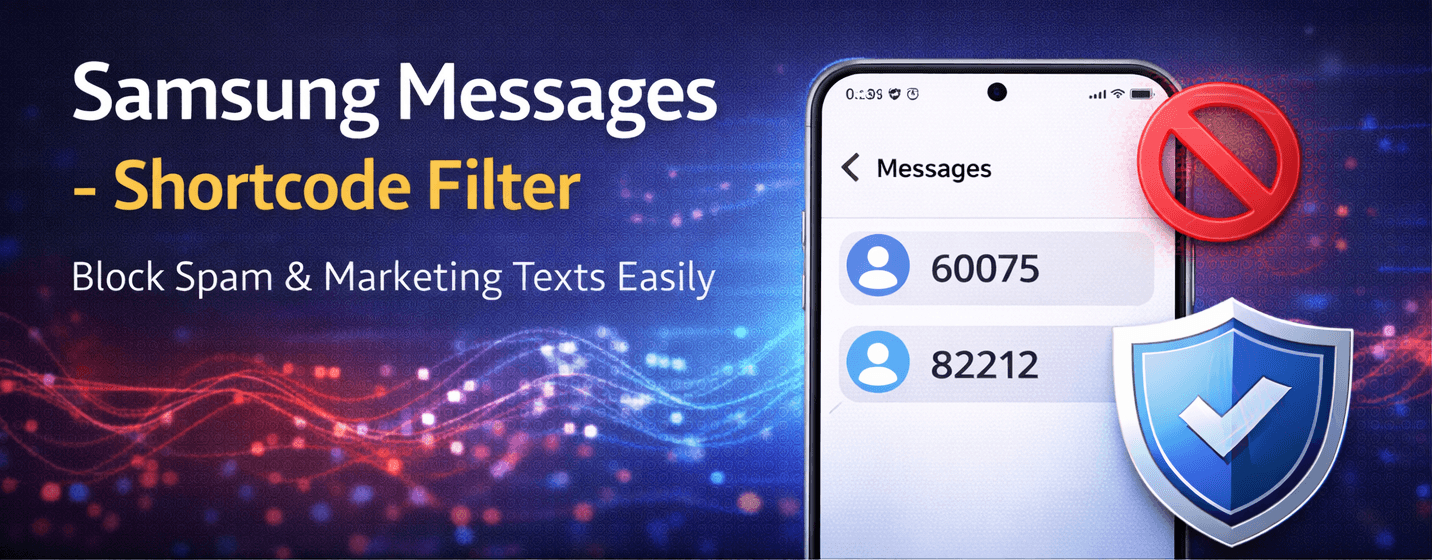
Short-code promotional messages from unknown senders can clutter your Samsung Messages inbox. Luckily, Galaxy phones allow you to filter these messages specifically without blocking all unknown senders.
⚠️ Filtering unknown senders only affects messages from numbers not saved in your contacts. Regular messages from unknown personal numbers may still appear.
Step 1: Open Messages Settings
- Open the Messages app on your Samsung device.
- Tap the three-dot menu in the top-right corner.
- Select Settings.
Step 2: Enable Unknown Sender Filtering
- Go to Block numbers and spam.
- Toggle on Filter unknown senders.
Step 3: Filter Only Short-Code Messages
- Locate the option for Short-code messages within the filtering settings.
- Enable filtering specifically for 5-6 digit short-code numbers commonly used for promotional content.
- Messages from these numbers will now be separated or muted automatically.
Extra Tips to Manage SMS Spam
- Do not reply to unknown short-code messages.
- Keep your Samsung Messages app updated for the latest spam protection features.
- Regularly check the filtered folder to ensure no important messages are missed.
- Report suspicious short-code messages to your mobile provider if needed.
By filtering unknown senders for short-code messages, you can maintain a clean Samsung Messages inbox while still receiving important messages from personal contacts.