Samsung Galaxy Guide: Filter Unknown SMS by Category (Spam / Bank / Ads)
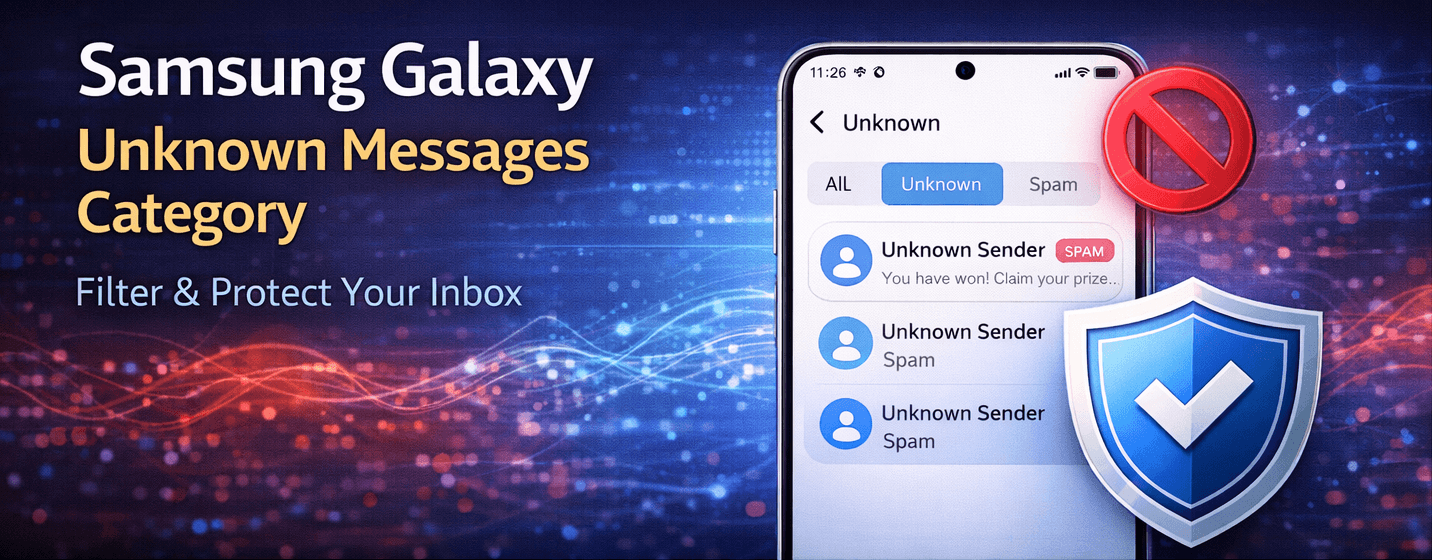
Samsung Galaxy devices allow you to organize messages from unknown senders into categories such as Spam, Bank, and Ads. This makes it easier to manage your inbox, quickly identify important messages, and reduce distractions from unwanted content.
⚠️ Category filtering works for unknown senders. Messages from contacts are unaffected.
Step 1: Open Messages Settings
- Open the Messages app on your Samsung Galaxy.
- Tap the three-dot menu in the top-right corner.
- Select Settings → Block numbers and spam.
Step 2: Enable Spam Protection
- Toggle on Spam protection to detect spam messages automatically.
- This ensures suspicious messages are moved to the Spam category.
Step 3: Categorize Unknown Messages
- Within Block numbers and spam, tap Message categories.
- Assign filters for: Spam, Bank, and Ads.
- Messages from unknown numbers will automatically be sorted based on category rules.
Step 4: Review and Adjust Categories
- Open the filtered folder to review categorized messages.
- If a message is miscategorized, manually move it to the correct category.
- Regularly update your category rules for optimal filtering.
💡 Combining category filters with blocking known spam numbers maximizes inbox organization and protection.
Extra Tips to Manage Unknown Messages
- Do not respond to messages marked as Spam or Ads.
- Report suspicious Bank messages to your bank directly.
- Keep your Samsung Messages app updated to leverage the latest filtering features.
- Regularly review filtered categories to ensure important messages are not missed.
By categorizing unknown messages into Spam, Bank, and Ads, you can maintain a clean, organized, and distraction-free inbox on your Samsung Galaxy.