Enable Spam Protection on Samsung Galaxy Messages
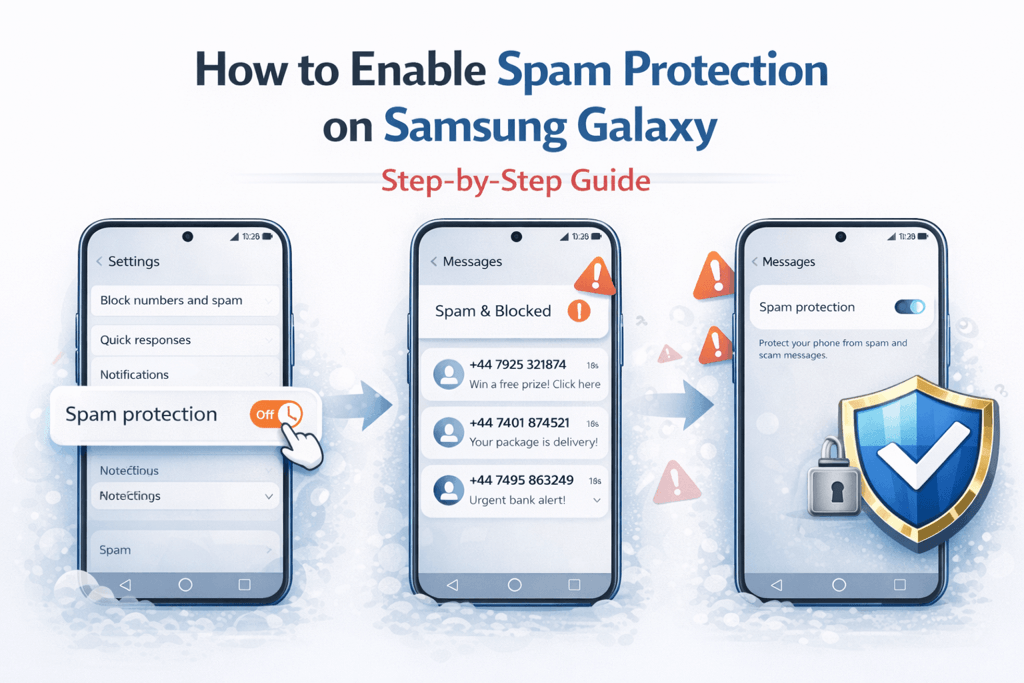
Spam text messages can be annoying and sometimes dangerous. Samsung Galaxy phones include built-in tools to detect and filter unwanted SMS messages. Activating message spam protection helps keep your inbox secure and organized.
⚠️ Spam protection does not block numbers completely; it flags messages and moves them to a filtered section.
Step 1: Open Messages Settings
- Open the Messages app on your Samsung Galaxy.
- Tap the three-dot menu in the top-right corner.
- Select Settings.
Step 2: Enable Spam Protection
- Tap Block numbers and spam.
- Toggle on Caller ID and spam protection.
- Confirm any prompts to allow spam protection.
Step 3: Block Specific Numbers
- Open the unwanted message conversation.
- Tap the three-dot menu and select Block number.
- Confirm to prevent future messages from this sender.
Step 4: Use Google Messages for Advanced Filtering
For enhanced spam detection, you can switch to Google Messages:
- Install or open Google Messages.
- Tap your profile icon and go to Messages Settings.
- Select Spam Protection and enable it.
💡 Keep your Samsung Galaxy updated to benefit from the latest spam protection features.
Extra Tips to Reduce SMS Spam
- Do not reply to suspicious messages.
- Never click links from unknown senders.
- Report spam messages when the option is available.
- Regularly review blocked numbers and settings.
Activating spam protection on your Samsung Galaxy will filter unwanted messages and reduce risks from phishing or scam texts.