How to Identify & Filter Fake Bank SMS on iPhone - UK Guide
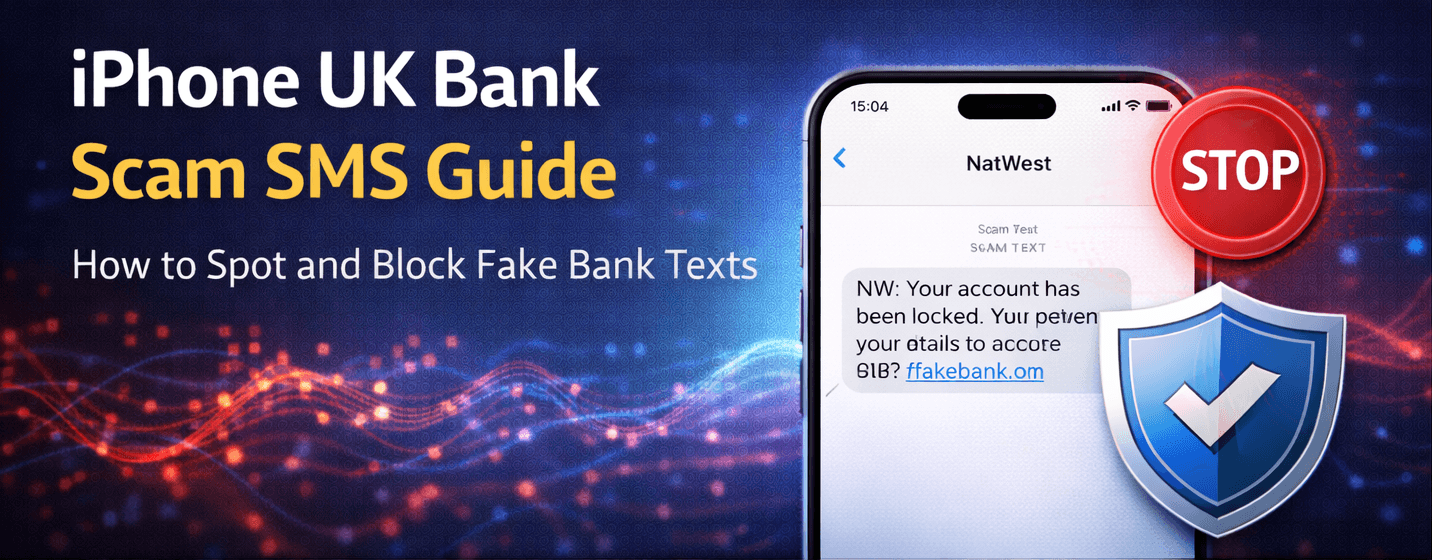
Fraudulent SMS pretending to be from UK banks are common. These messages often attempt to steal your personal information or banking credentials. iPhones provide tools to help you identify suspicious messages and filter them effectively.
⚠️ Always verify with your bank directly. Never click links or share sensitive information from suspicious messages.
Step 1: Recognize Fake Bank Messages
- Check the sender’s number - genuine banks rarely send messages from unknown mobile numbers.
- Look for spelling errors, unusual formatting, or urgent requests.
- Never respond to messages asking for passwords, PINs, or verification codes.
Step 2: Enable Message Filtering
- Open the Settings app on your iPhone.
- Scroll down and select Messages.
- Toggle Filter Unknown Senders ON.
- All messages from numbers not in your contacts will now be sorted into a separate tab.
Step 3: Block Specific Numbers
- If you receive a fraudulent message, open the conversation.
- Tap the contact number → Info → Block this Caller.
- Confirm to prevent future messages from the same number.
Step 4: Report Suspicious Messages
Reporting scams helps protect others and contributes to UK banking security:
- Forward suspicious SMS to 7726 (SPAM) in the UK.
- Optionally, report to your bank via official channels.
💡 Regularly update your iPhone to ensure Apple’s spam filters and message protection tools work effectively.
Extra Tips to Stay Safe
- Do not click links from unknown or suspicious numbers.
- Verify with your bank via official contact methods.
- Keep your phone number private in public spaces.
- Periodically review blocked numbers and filtering settings.
Using these methods, you can identify and filter fake bank messages on your iPhone, protecting your personal information and reducing spam.