Filter Utility Scam Messages by Area Code on iPhone
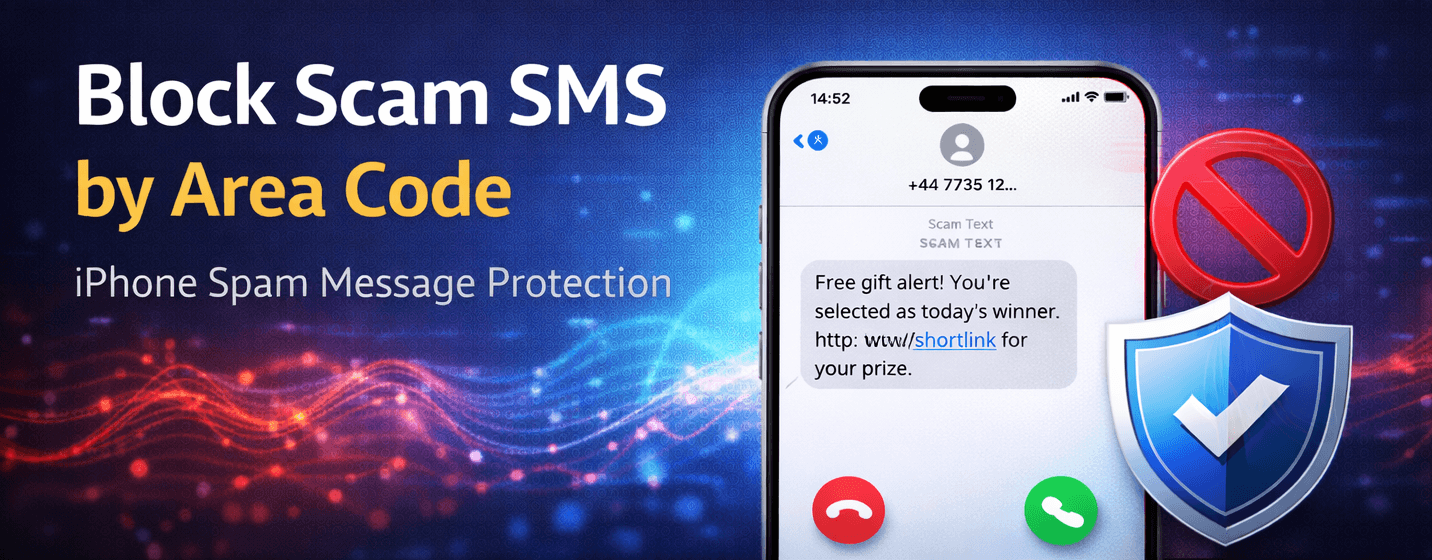
Energy and utility scams via text message are increasingly common. iPhones allow you to filter messages from unknown senders, and with the right approach, you can block scam messages coming from specific area codes.
⚠️ Blocking messages by area code may not stop all scams, but it significantly reduces messages from known spam regions.
Step 1: Open Messages Settings
- Open the Settings app on your iPhone.
- Scroll down and select Messages.
- Tap Unknown & Spam.
Step 2: Enable Filter Unknown Senders
- Toggle Filter Unknown Senders to ON.
- This will separate messages from unknown numbers into a separate list.
Step 3: Block Specific Area Codes
You can block scam messages by targeting area codes that scammers frequently use:
- Identify the area codes sending unwanted energy or utility messages.
- Add them to your block list using Contacts or Phone/Message blocking apps.
- Messages from these numbers will no longer notify you.
Step 4: Report Scam Messages
Reporting scam messages helps Apple improve its filtering system and warn other users.
- Long-press the message in the Messages app.
- Select Report Junk.
- Optionally delete the conversation afterward.
💡 Consider using trusted third-party apps to automatically block known scam numbers and area codes for extra protection.
Extra Tips to Avoid Scam SMS
- Never reply to suspicious messages.
- Do not click on links from unknown numbers.
- Share your phone number only with trusted contacts.
- Regularly review blocked numbers and settings.
By filtering messages and blocking specific area codes, you can reduce energy and utility scam SMS and maintain a cleaner inbox on your iPhone.