Stop Spam Texts on iPhone 15: How to Automatically Filter Unknown Numbers
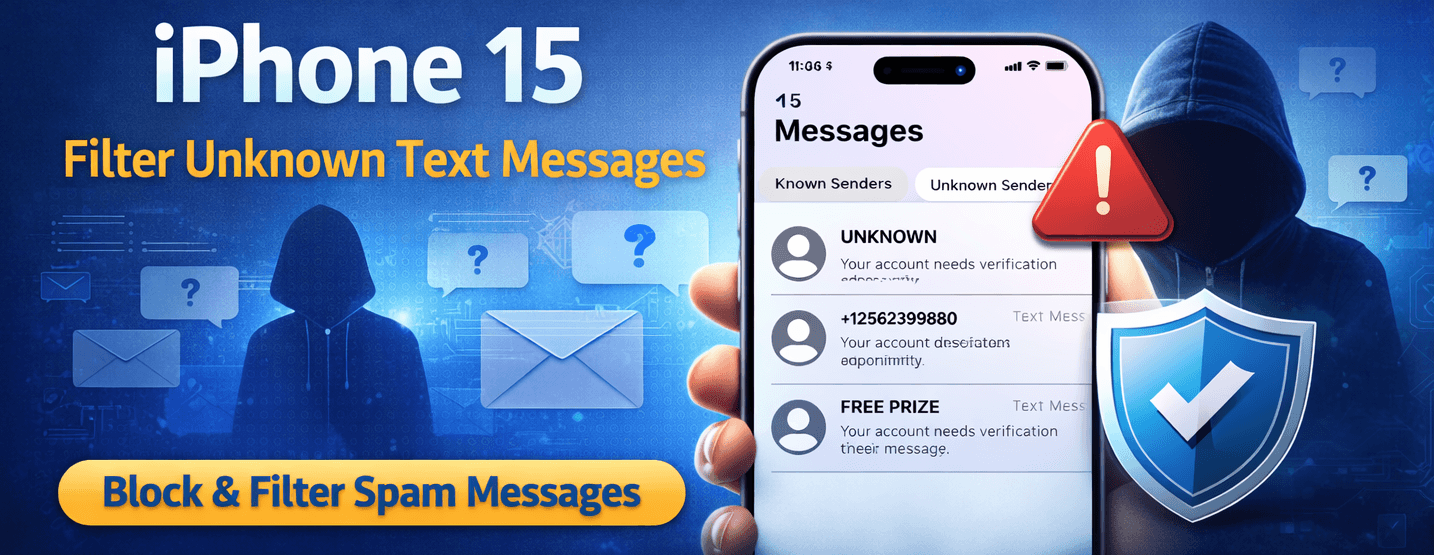
Receiving spam or unwanted text messages from unknown numbers can be frustrating. Fortunately, iPhone 15 includes built-in tools that automatically filter and separate messages from people who are not in your contacts.
Enable Message Filtering in Settings
Follow these steps to activate the built-in filtering feature:
- Open Settings.
- Scroll down and tap Messages.
- Find Filter Unknown Senders.
- Turn the toggle ON.
Once enabled, your Messages app will automatically create two categories: Known Senders and Unknown Senders.
Where to Find Filtered Messages
After enabling the feature:
- Open the Messages app.
- Tap Filters in the top-left corner.
- Select Unknown Senders to view filtered texts.
These messages will not trigger notifications, helping reduce distractions.
How to Block a Specific Number
If a number keeps sending unwanted texts, you can block it completely:
- Open the message from the sender.
- Tap the number at the top of the screen.
- Select Info.
- Scroll down and tap Block this Caller.
Use Third-Party SMS Filtering Apps
You can install spam detection apps from the App Store for advanced filtering. These apps use databases to automatically detect suspicious or scam messages.
To enable them:
- Go to Settings.
- Tap Messages.
- Select Unknown & Spam.
- Enable your installed filtering app.
Why Filtering Unknown Messages Matters
Text message scams are increasingly common. Filtering unknown senders helps you:
- Reduce phishing risks
- Avoid accidental clicks on malicious links
- Keep your inbox organized
- Protect your personal data