Spam Filter Not Working on iPhone 14 - Troubleshooting Guide
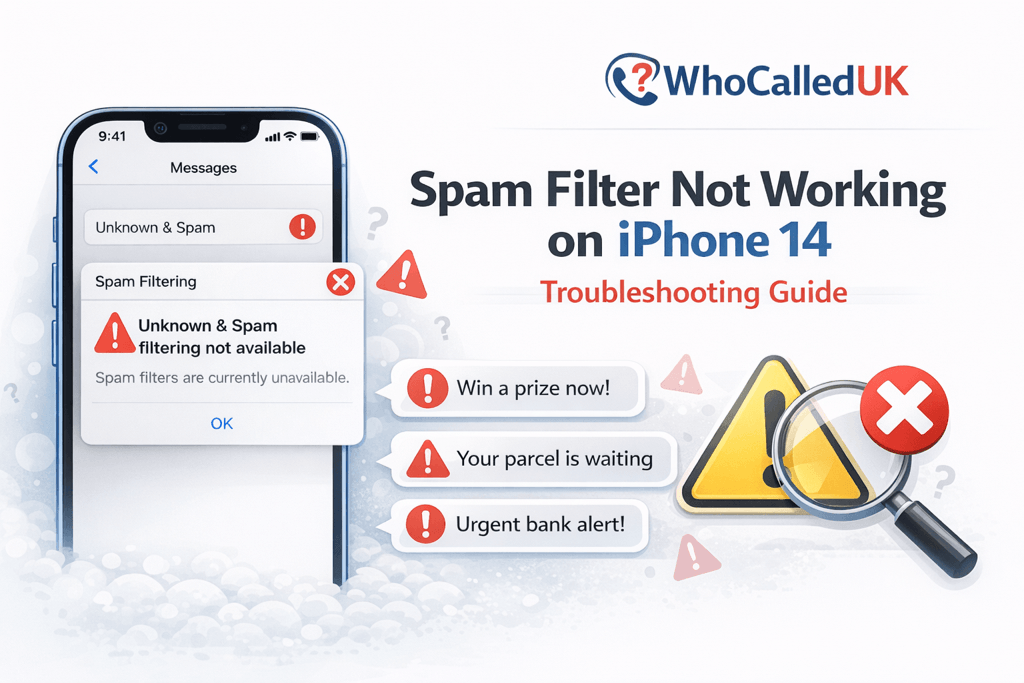
If your iPhone 14 is not separating spam or unknown text messages, the built-in filtering feature may be disabled or misconfigured. Below are the most common reasons and how to fix them quickly.
⚠️ Message filtering only works when "Filter Unknown Senders" is enabled. It does not automatically block numbers.
1. Filter Unknown Senders Is Turned Off
This is the most common reason spam texts appear in your main inbox.
- Open Settings.
- Tap Messages.
- Find Filter Unknown Senders.
- Make sure the toggle is ON.
2. The Sender Is Saved in Your Contacts
If the phone number is saved in your contacts, the message will not be filtered as an unknown sender.
- Check your Contacts app.
- Remove suspicious or outdated numbers if necessary.
3. iOS Version Is Outdated
Software bugs can affect message filtering. Updating iOS may resolve the issue.
- Go to Settings.
- Tap General.
- Select Software Update.
- Install the latest available version.
4. Third-Party SMS Filter Is Disabled
If you use a spam detection app, it may not be properly enabled.
- Open Settings.
- Tap Messages.
- Select Unknown & Spam.
- Ensure your SMS filtering app is activated.
💡 After enabling filtering, open the Messages app and tap "Filters" to confirm the Unknown Senders section appears.
5. Restart Your iPhone 14
Sometimes a simple restart resolves temporary glitches affecting message settings.
- Press and hold the Side button + Volume button.
- Slide to power off.
- Turn the device back on after 30 seconds.
If filtering still does not work, consider resetting all settings (Settings > General > Transfer or Reset iPhone > Reset > Reset All Settings).
This will not delete your data but will restore system settings.