iPhone 14 Spam Text Control: Filter Messages from Unknown Numbers Easily
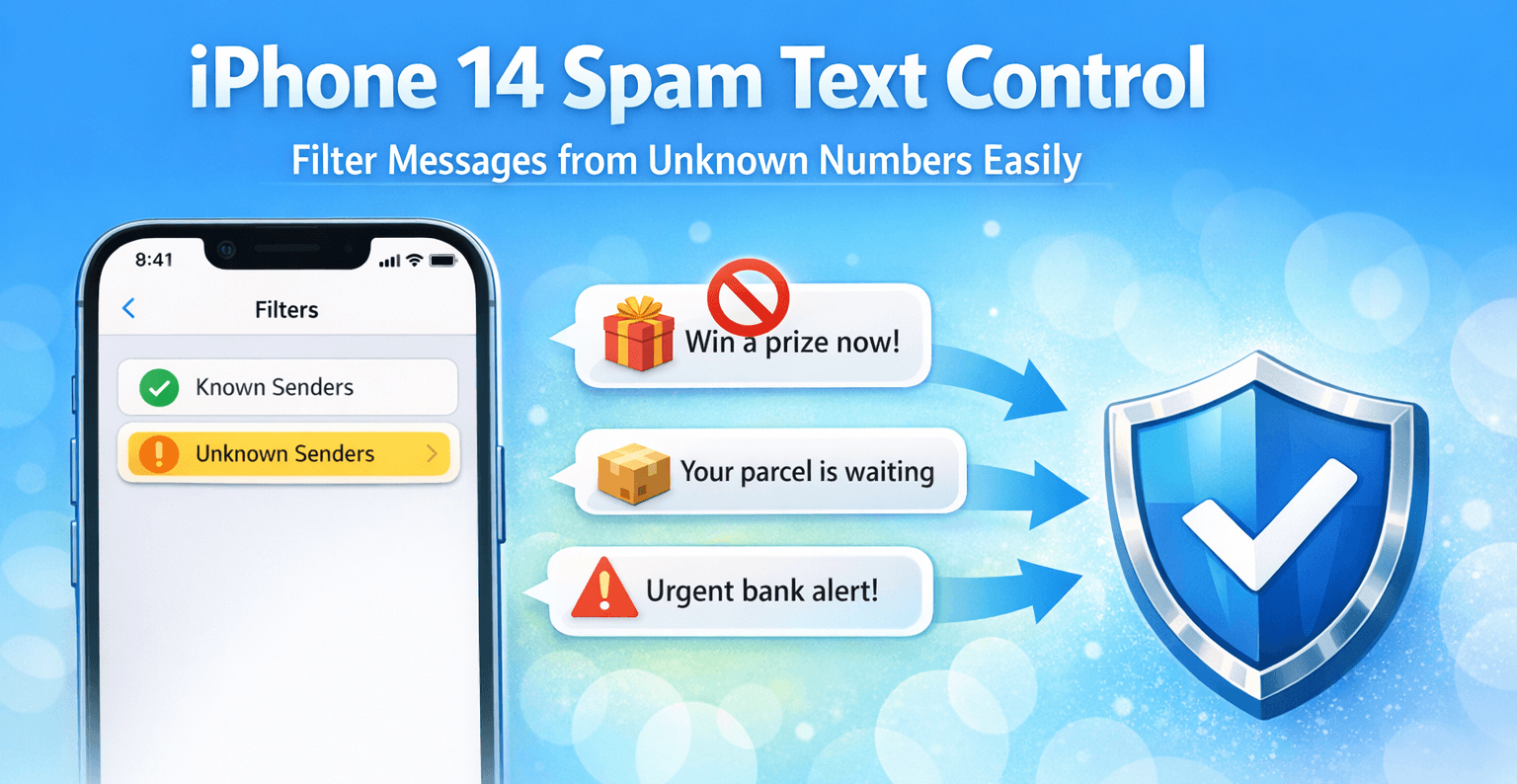
Spam text messages and unknown numbers can quickly clutter your inbox. The iPhone 14 includes built-in tools that help you automatically separate messages from people who are not saved in your contacts.
⚠️ Filtering unknown senders does not block them completely - it simply moves their messages into a separate section.
Turn On Unknown Sender Filtering
Follow these simple steps:
- Open Settings.
- Scroll down and tap Messages.
- Locate Filter Unknown Senders.
- Switch the toggle ON.
Once activated, your Messages app will automatically divide texts into Known Senders and Unknown Senders.
How to View Filtered Messages
- Open the Messages app.
- Tap Filters in the upper-left corner.
- Select Unknown Senders.
Messages in this section will not trigger standard notifications, reducing spam-related interruptions.
Block Persistent Spam Numbers
If the same number keeps contacting you:
- Open the conversation.
- Tap the number at the top.
- Select Info.
- Tap Block this Caller.
Enable SMS Filtering Apps
For stronger spam detection, you can install third-party SMS filtering apps.
- Go to Settings.
- Tap Messages.
- Select Unknown & Spam.
- Enable your chosen filtering app.
💡 Keeping your device updated ensures you benefit from the latest spam protection improvements.
Why You Should Filter Unknown Messages
- Reduce exposure to phishing links
- Avoid accidental taps on scam messages
- Keep business and personal messages organized
- Improve overall mobile privacy
Taking a few minutes to adjust your message settings can significantly reduce unwanted SMS clutter.