How to Block Unknown Numbers on iPhone & Android
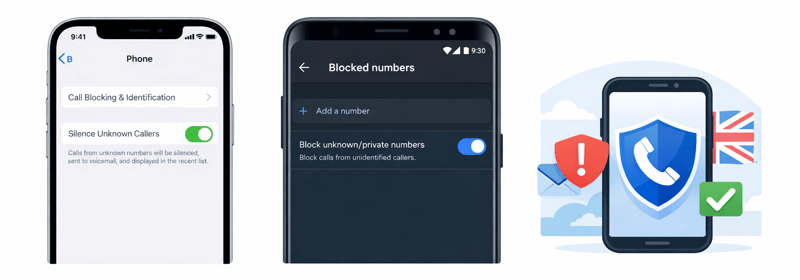
Unwanted phone calls have become increasingly common across the United Kingdom. Many people receive calls from unknown, withheld, or suspicious numbers every day. Some of these calls may simply be telemarketing attempts, while others may involve scam activity designed to obtain personal information.
Fortunately, both iPhone and Android devices include built-in tools that help you block unknown callers, silence private numbers, and manage spam more effectively. This guide explains the practical steps you can take to reduce nuisance calls and protect your privacy.
Why Do Unknown Numbers Call You?
Unknown numbers may appear for several reasons. Some callers hide their number intentionally, while others may be using automated dialling systems that display temporary numbers.
- Telemarketing companies promoting products or services
- Automated robocalls or recorded marketing messages
- Scam calls pretending to be banks, delivery companies or government services
- Legitimate businesses calling from centralised switchboards
- Individuals who have withheld their caller ID
How to Block Unknown Numbers on iPhone
How to Block Unknown Numbers on Android
Android phones may vary slightly depending on the manufacturer, but the basic process is usually similar across most devices.
Extra Ways to Stop Spam Calls
- Use trusted call-blocking apps with spam detection
- Report suspicious numbers online
- Avoid answering calls from numbers you do not recognise
- Never share personal or financial information over the phone
- Keep your phone software updated for improved security
How Reporting Numbers Helps Other Users
Many phone lookup websites allow users to share their experiences with unknown numbers. When people report scam calls, spam messages, or suspicious activity, it becomes easier for others to identify potential risks.
Checking a number before calling back can help you determine whether the caller is legitimate or whether other users have already flagged the number as suspicious.
Frequently Asked Questions
Will blocking unknown numbers stop all spam calls?
No. Some spam callers use standard phone numbers that appear legitimate. Blocking unknown numbers mainly stops calls where the caller ID is hidden or withheld.
Can legitimate calls be blocked by mistake?
Yes. If someone calls you from a number that is not saved in your contacts, the call may be silenced. It will still appear in your call history so you can return the call if necessary.
Should I call back missed numbers?
If you do not recognise the number, it is safer to search the number online first. Many scam calls rely on people calling back unknown numbers.
Is it safe to answer unknown numbers?
Answering an unknown number is not always dangerous, but it is important to avoid sharing personal details unless you are certain about the caller’s identity.